Customize Filmora Keyboard
Shortcuts
for Faster Editing
 4.7
(15,746
reviews)
4.7
(15,746
reviews)
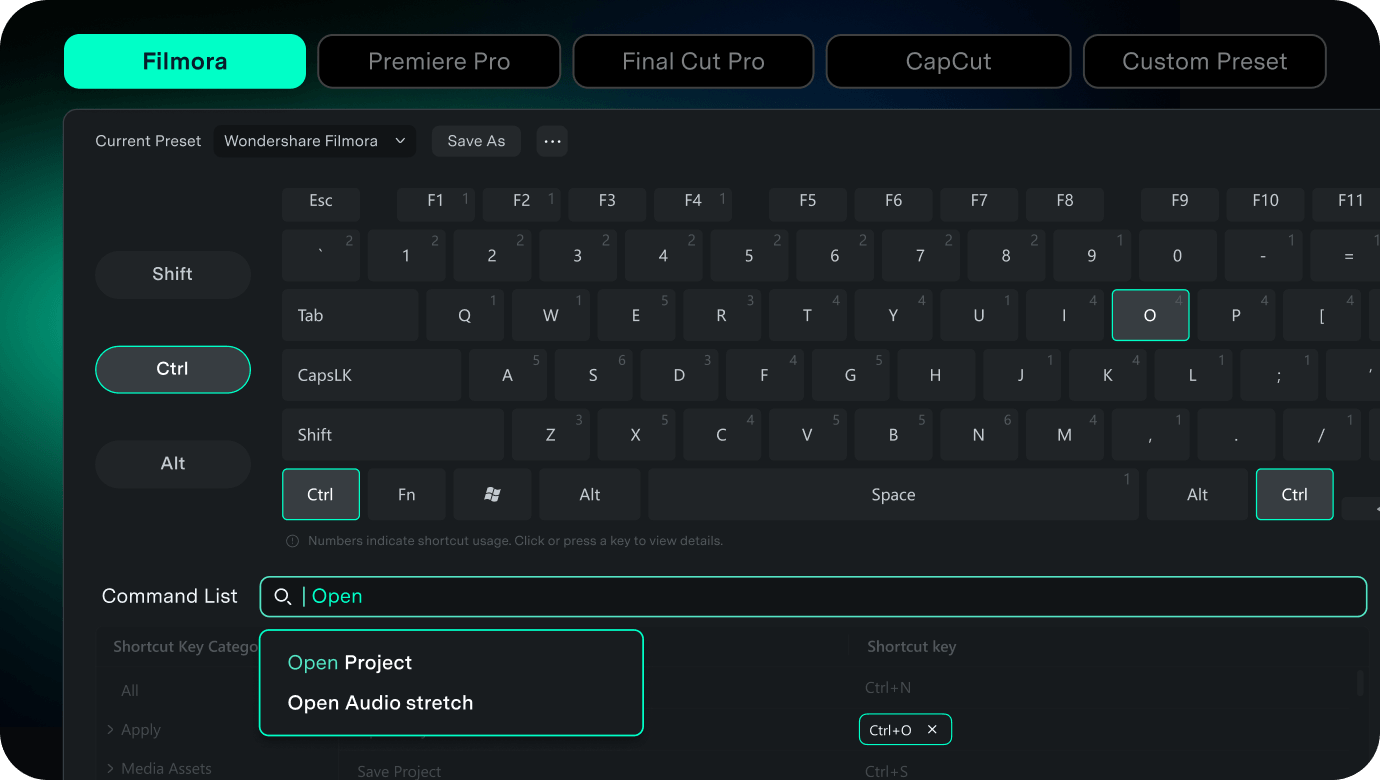
Work Smarter with an Intuitive Timeline Editor
Choose Filmora's default layout, keep a familiar shortcut habit from another editor, or save your own preset for repeatable edits.
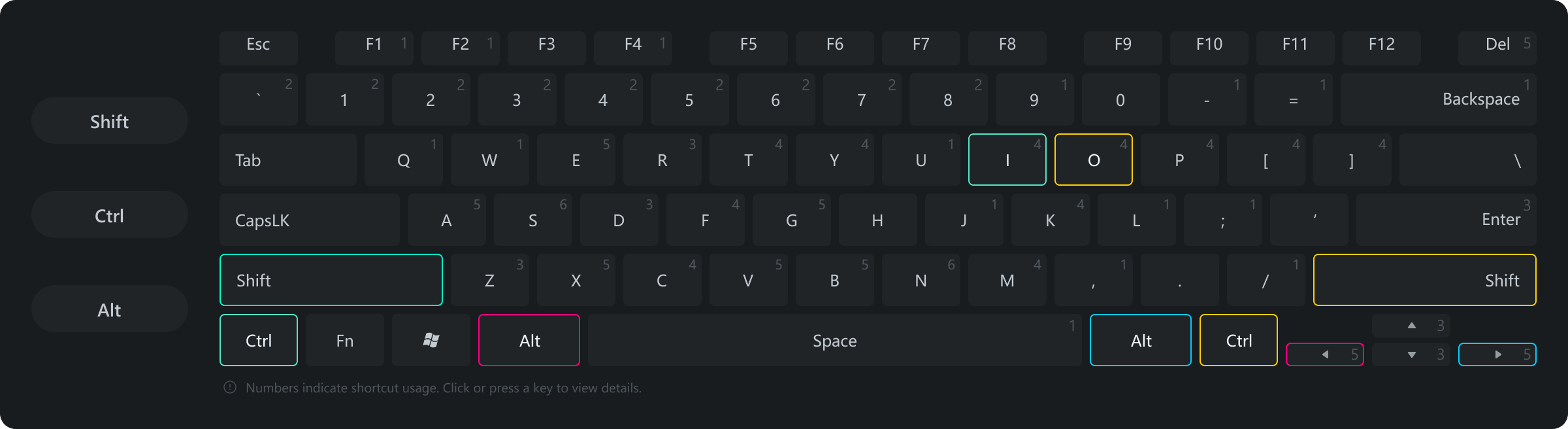
- InsertCtrl+Shift+I
- Nudge LeftAlt+Left
- Nudge RightAlt+Right
- OverwriteCtrl+Shift+O
Find, Customize, and Save Your Keyboard Shortcuts
Search for the command you need, change key bindings with conflict awareness, and save your own preset so your shortcut setup always matches the way you edit.
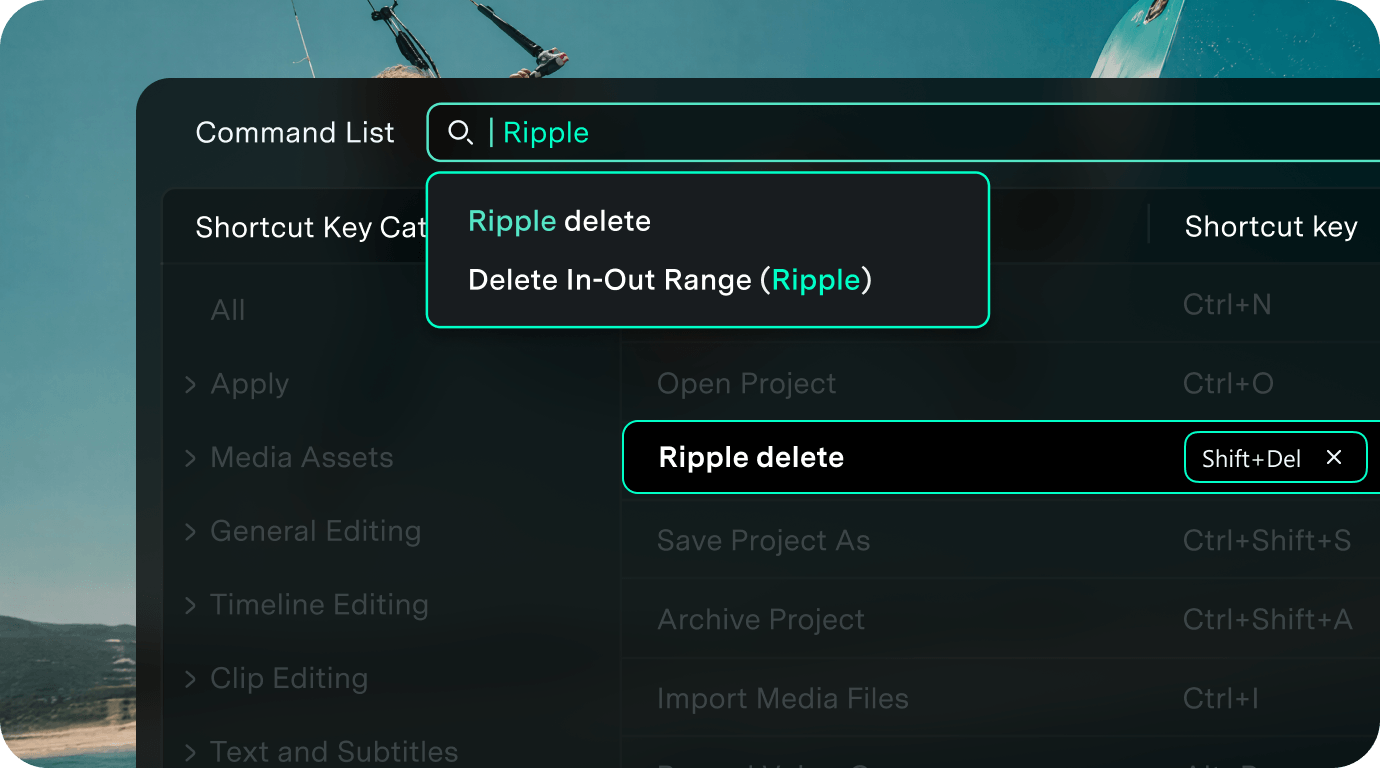
Find the Shortcut You Need Faster
Search by command name, editing keyword, pinyin, or English term — jump to the command, highlight its shortcut keys, and read what it does. Reverse lookup from a key to its command helps locate any shortcut on the visual keyboard.
- Search by command name, editing keyword, pinyin, or English term; shortcut-combination search is out of scope.
- Auto-positioning in the command list with assigned shortcut keys highlighted.
- Reverse lookup from a key to its commands, plus right-side command information.
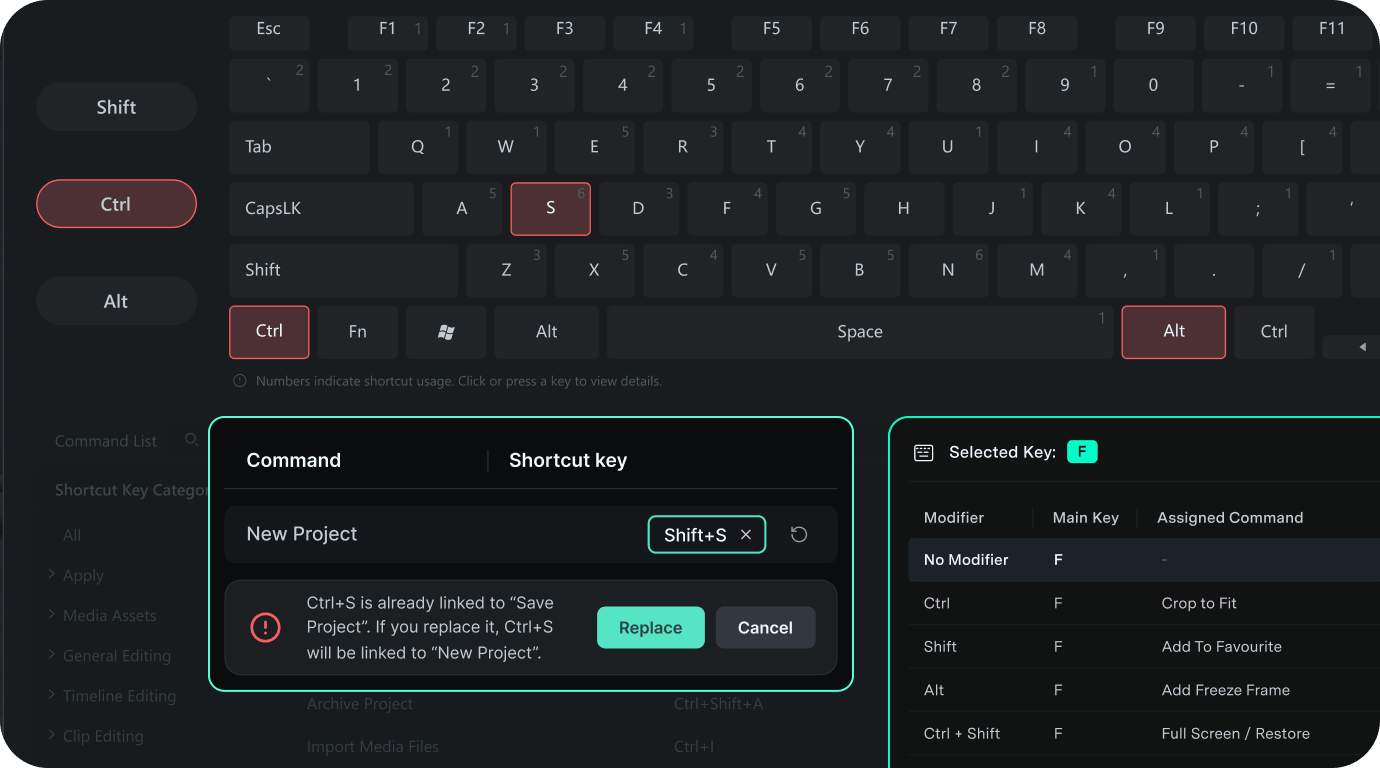
Customize Shortcuts with Confidence
See key occupancy at a glance, get a clear conflict prompt when a key is taken, and know which shortcuts are editable or locked. Change bindings with full visibility and decide whether to keep or replace existing ones.
- Visual keyboard shows key usage counts and occupied keys.
- Conflict prompt when a shortcut is already assigned — decide whether to replace the existing binding.
- Editable / locked hints plus record-new-key flow; edit, delete, or restore shortcuts.
Save and Reuse Your Shortcut Setup
Save your configuration as a custom preset, rename or delete it, and import/export across devices so your shortcut habits travel with you.
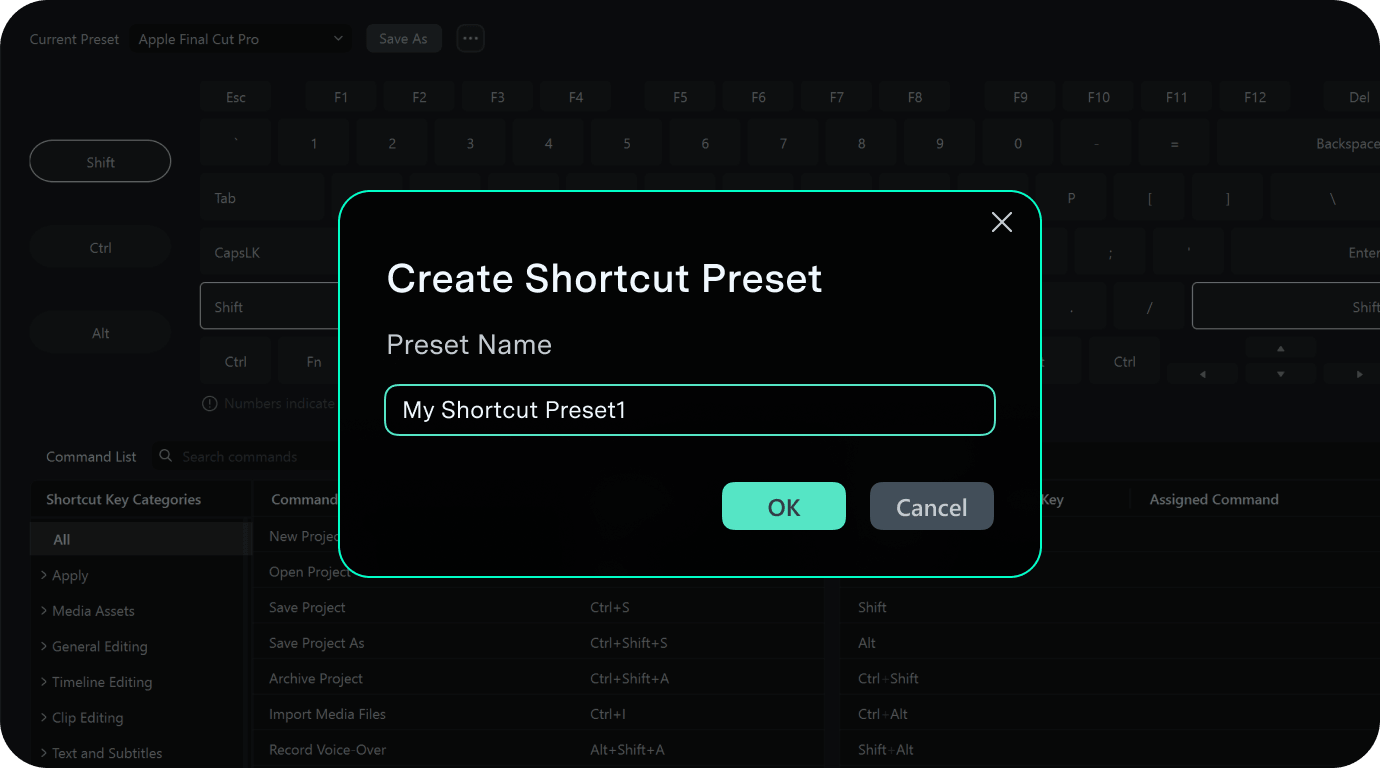
- Save current shortcuts as a reusable custom preset; rename or delete custom presets.
- Import and export presets for device changes or team reuse.
- Restore defaults when users need a clean reset.
How to Customize Keyboard Shortcuts in Filmora
Use the shortcut manager on Filmora desktop to open shortcuts, choose or customize keys, and save or export your setup.
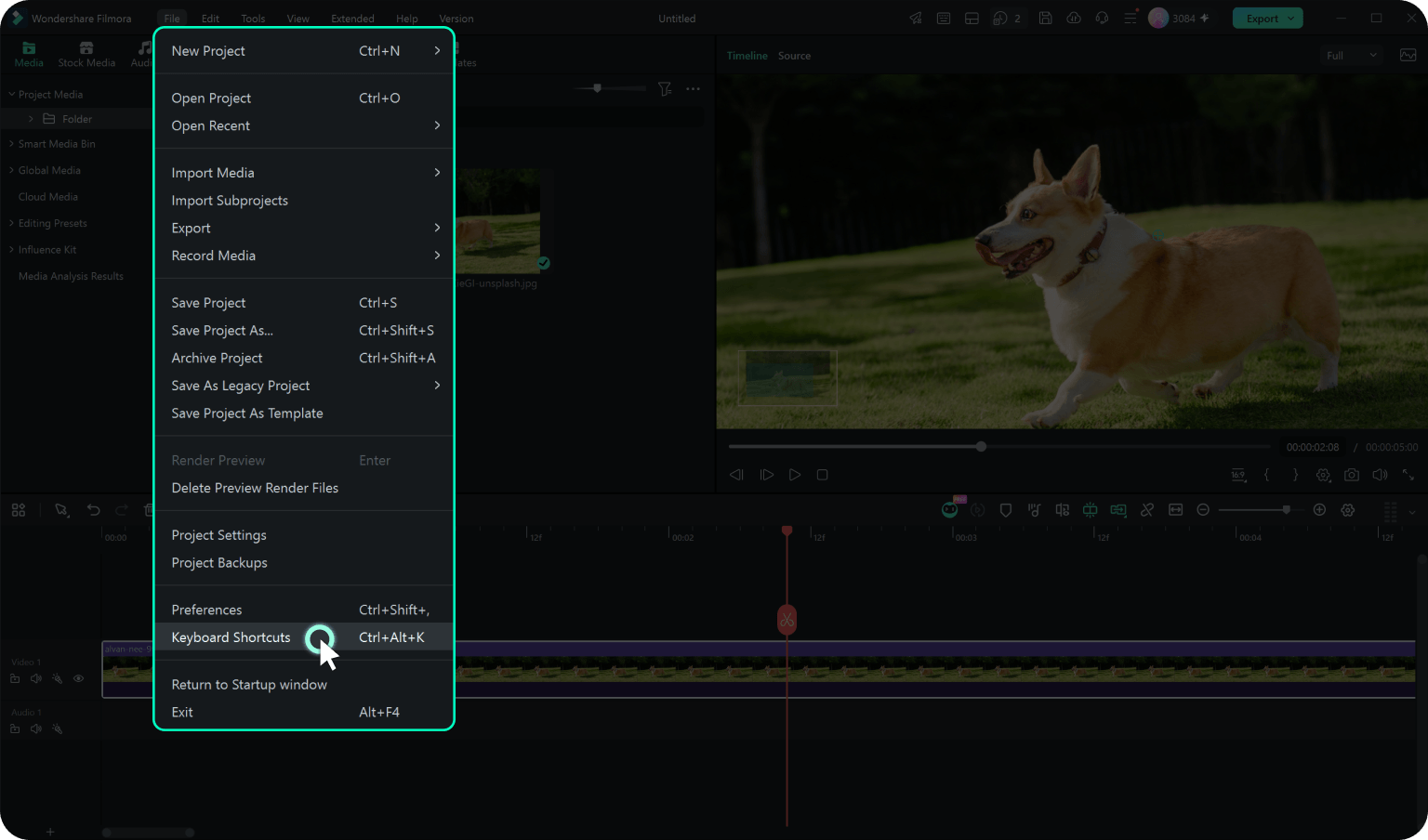
Step 1. Open Keyboard Shortcuts
Enter from the top shortcut settings entry or Preferences > Keyboard Shortcuts.
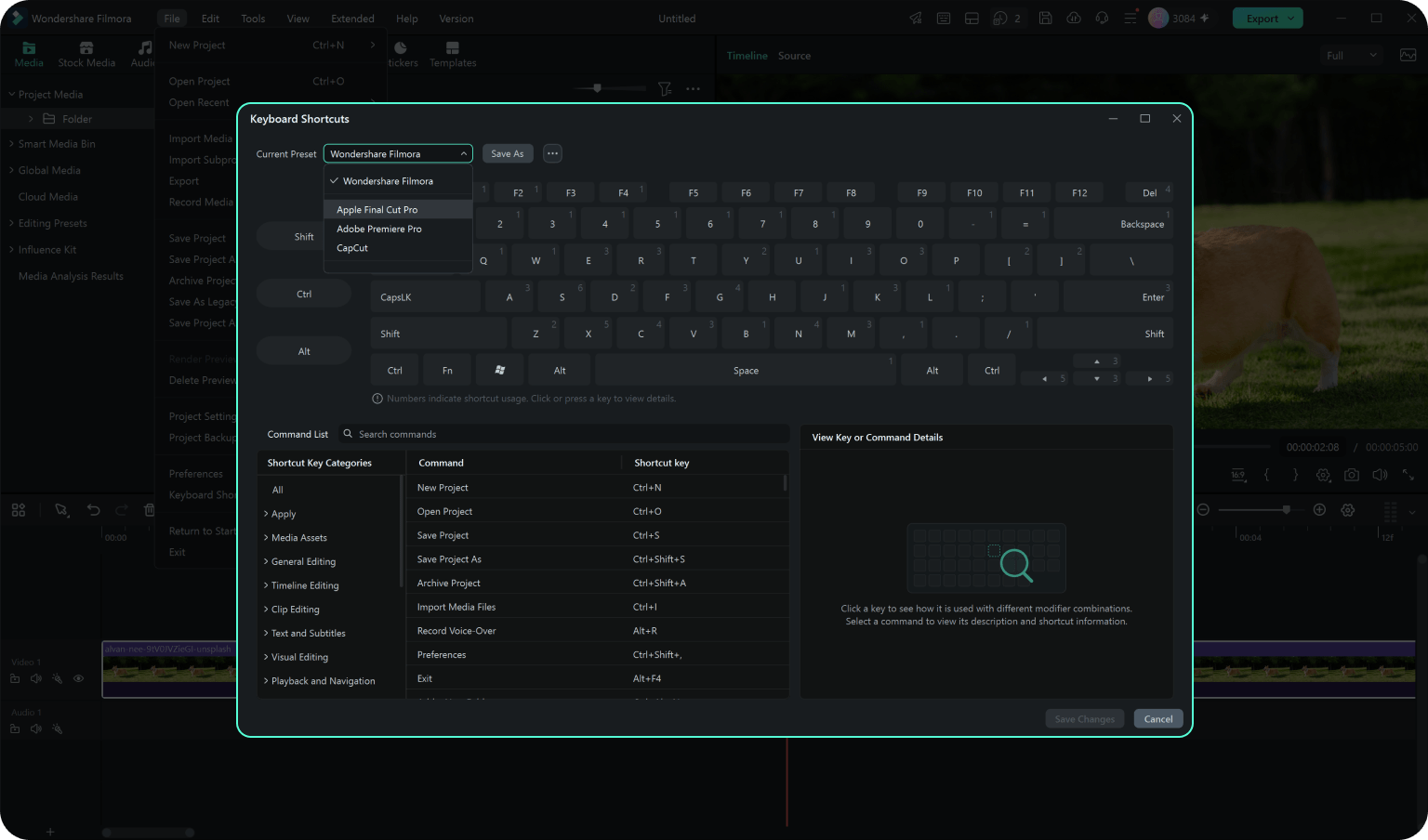
Step 2. Choose a Preset or Customize Your Keys
Switch between Filmora, Premiere Pro, Final Cut Pro, CapCut, or your own custom preset. Search commands and record new key combinations as needed.
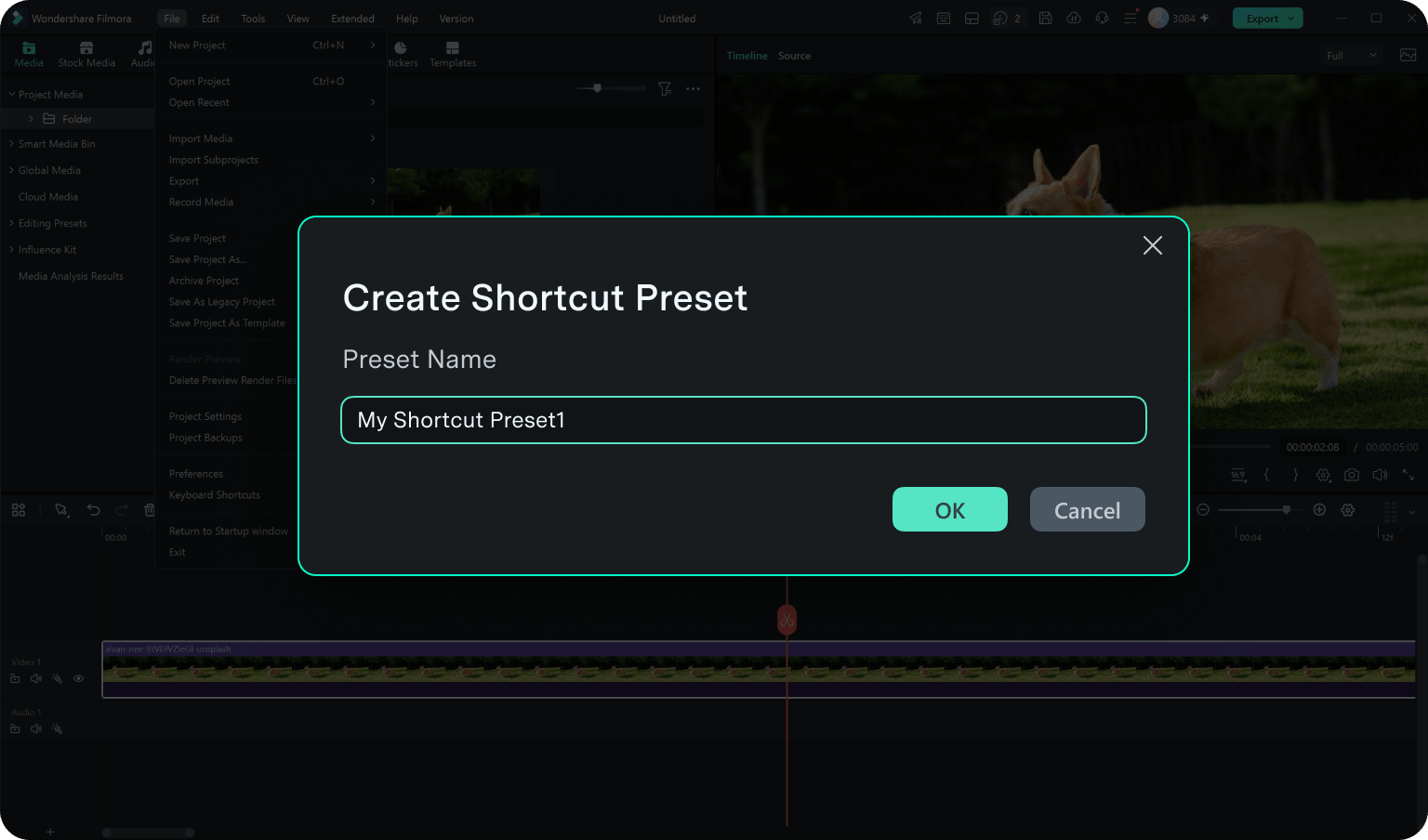
Step 3. Save or Export Your Setup
Review occupied shortcuts, save changes, and export your preset for reuse.
-
Step 1. Open Keyboard Shortcuts
Enter from the top shortcut settings entry or Preferences > Keyboard Shortcuts.
-
Step 2. Choose a Preset or Customize Your Keys
Switch between Filmora, Premiere Pro, Final Cut Pro, CapCut, or your own custom preset. Search commands and record new key combinations as needed.
-
Step 3. Save or Export Your Setup
Review occupied shortcuts, save changes, and export your preset for reuse.
Frequently Asked Questions
Keyboard shortcut presets are switchable shortcut layouts that help you start from Filmora's default setup, a familiar editing layout, or your own custom preset.
Filmora supports preset switching scenarios for familiar editing workflows. You can choose a Premiere Pro, Final Cut Pro, or CapCut shortcut preset to maintain familiar editing habits in Filmora.
Yes. You can edit available shortcuts, record new key combinations, delete edited shortcuts, restore defaults, and save your changes as a custom preset.
Yes. You can import shortcut presets and export your current preset so the same setup can be reused later.
When a new shortcut is already assigned to another command, Filmora displays a conflict prompt so you can decide whether to replace the existing binding.
Some shortcuts may be limited by system or gesture settings.You can still view their command information and usage limitations in the shortcut manager.
What Our Customers Say About Us
Discover More Powerful Editing Features in Filmora

A video editor for all creators.
Maya Chen
Daniel Brooks
Priya Raman
Lucas Miller